Key takeaways
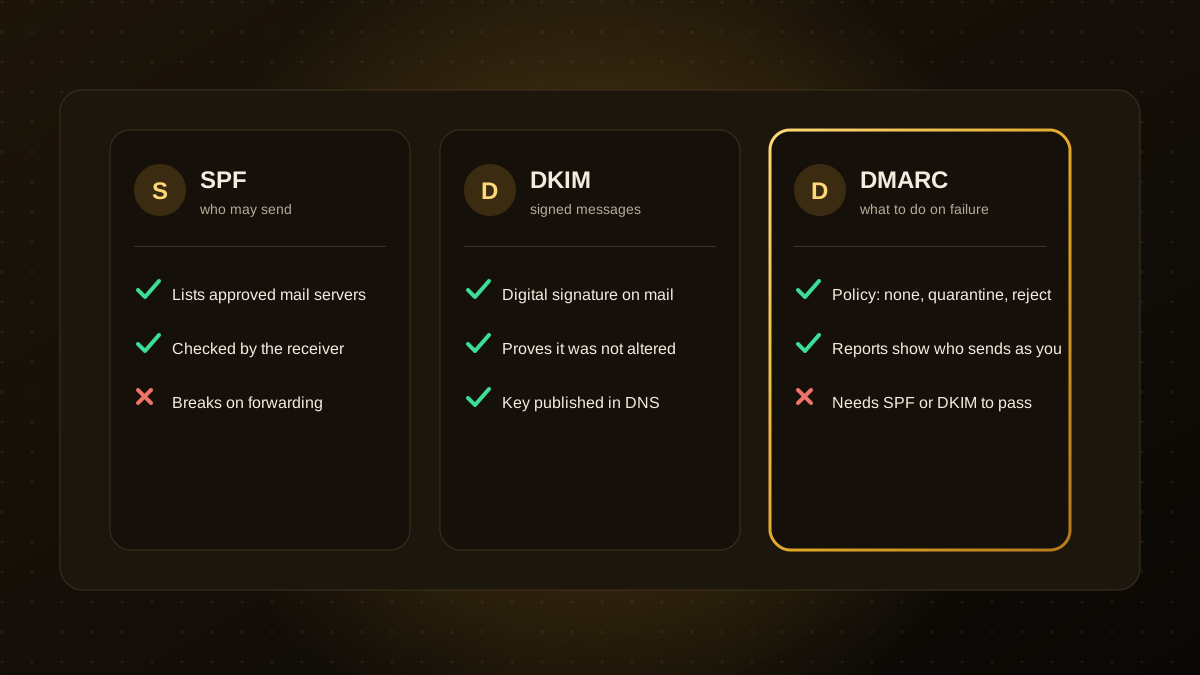
- SPF lists who may send email for your domain, DKIM signs each message, and DMARC tells receivers what to do when checks fail and sends you reports.
- Without them, your genuine email is more likely to be filtered as spam and criminals can more easily impersonate your domain.
- Large mailbox providers expect authenticated email, especially from senders who send in bulk.
- Set up SPF and DKIM first, start DMARC in monitoring mode, then tighten to quarantine and reject.
- Include every service that sends as you, such as your newsletter tool, CRM, billing system and website forms.
Why this matters
Email was designed without a way to prove who sent a message, so anyone can claim to be you@yourcompany.com. Criminals use that for phishing, and mailbox providers respond by filtering anything that looks unverified. Setting up authentication protects your customers, helps your real email reach the inbox and improves your reputation. It is one of the cheapest security improvements a business can make.
The three records
| Record | What it does | Where it lives |
|---|---|---|
| SPF | Lists the servers and services allowed to send email for your domain | A TXT record in your DNS |
| DKIM | Adds a cryptographic signature to each message, proving it came from you and was not changed | A public key published in DNS, with the private key held by your email service |
| DMARC | Sets the policy for messages that fail SPF or DKIM, and sends you reports | A TXT record at _dmarc.yourdomain.com |
Setting it up, in order
- List everything that sends email as you. Your mailbox provider, newsletter platform, CRM, helpdesk, billing and invoicing tools, and website contact forms.
- Publish one SPF record that includes each of those services. A domain should have a single SPF record. An example looks like
v=spf1 include:_spf.example.com ~all, but use the exact values each provider gives you. - Turn on DKIM in each sending service and publish the DNS records they provide.
- Add DMARC in monitoring mode first:
v=DMARC1; p=none; rua=mailto:dmarc@yourdomain.com. This changes nothing for delivery but starts sending you reports. - Read the reports for a few weeks. Fix any legitimate service that fails, and note unknown senders.
- Tighten the policy to
p=quarantineand thenp=rejectonce legitimate mail passes consistently.
Common mistakes
- More than one SPF record. Receivers may treat that as an error. Combine them into one.
- Too many lookups in SPF. SPF allows a limited number of DNS lookups, so avoid piling on includes you no longer use.
- Forgetting a sender. Moving straight to
rejectcan block your own invoices or newsletters. - Never reading DMARC reports. They show who is sending as you, including attackers.
- Leaving unused domains unprotected. Parked and old domains can be spoofed too. Publish a policy that says they send no email.
How to check it works
Send a test message to a mailbox you control, open the full headers and look for passes on SPF, DKIM and DMARC. Free online checkers can also read your DNS records and flag problems. Re-check after you add any new tool that sends email in your name.
Part of a wider security routine
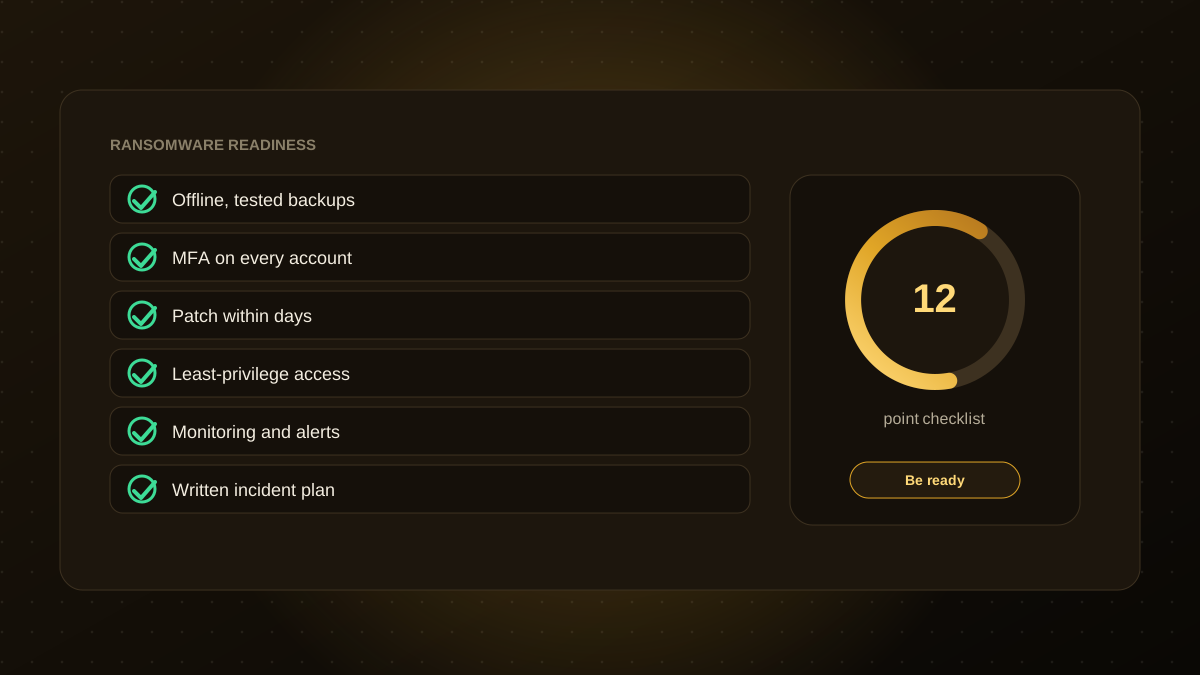
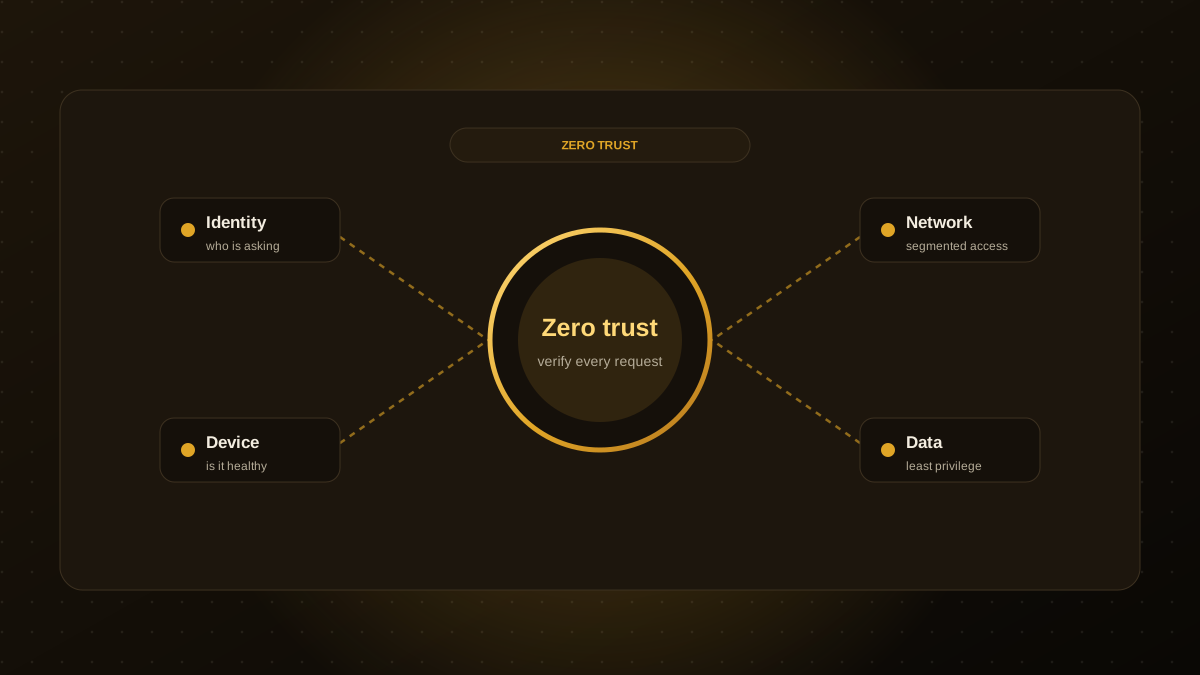
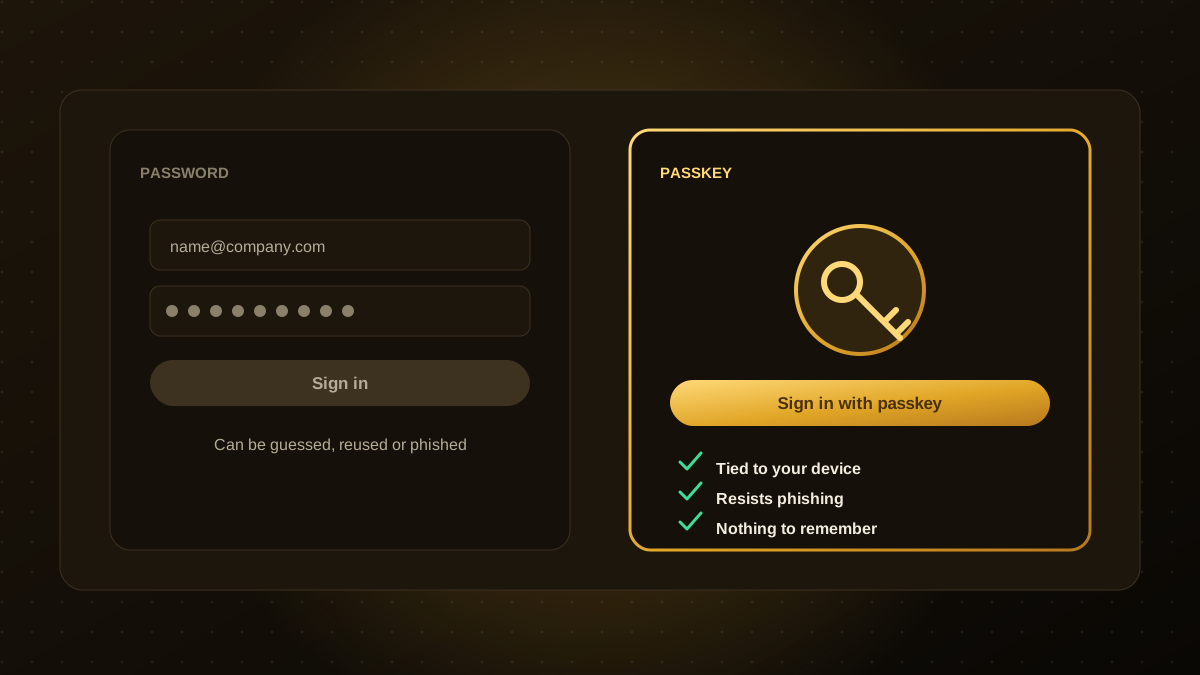
Authentication stops domain spoofing but does not stop phishing from lookalike domains or compromised accounts, so combine it with strong sign-in such as passkeys or multi-factor authentication and the habits in our ransomware readiness checklist and zero trust guide. If you would like help with DNS, email and website security, our website maintenance and security team can handle the set-up.

Qodexify is a remote-first team of senior engineers building web apps, AI agents, workflow automation and websites. Learn more about our website maintenance and security service or talk to an engineer.