Key takeaways
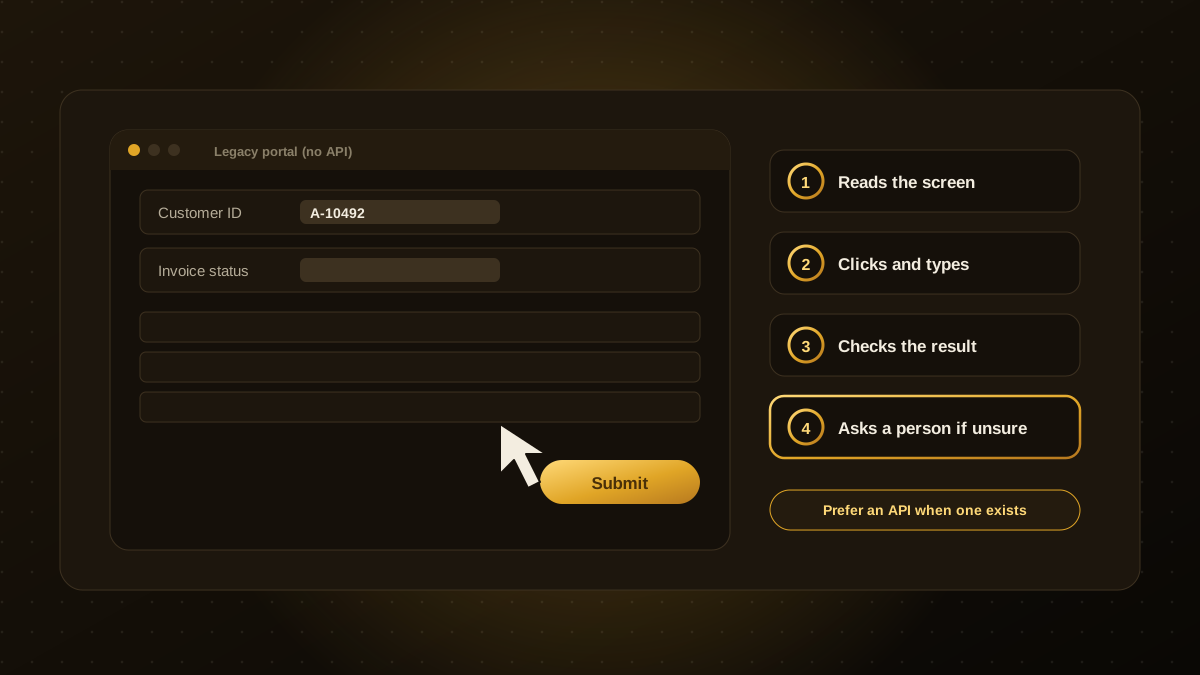
- Computer-use and browser agents operate software through its screen: they look, click, type and read results, like a person would.
- They are most useful for legacy portals and desktop tools that have no API or integration.
- They are slower, costlier and less reliable than direct integrations, so use an API whenever one exists.
- Run them with narrow permissions, dedicated accounts, approval steps and full logging.
- Start with low-risk, repetitive tasks and measure error rates before widening the scope.
What they are
Most automation connects systems through APIs. But a lot of business software, such as old supplier portals, government sites, insurance systems and desktop tools, has no API at all. A computer-use agent gets around that by working through the same screen a person uses. It takes a screenshot, decides what to do, moves the cursor, types, and checks what happened. A browser agent does the same inside a web browser.
Because they work through the interface, they can reach software that traditional integrations cannot.
Where they fit
- Legacy portals where staff copy data in and out by hand.
- Supplier and customer sites that need a login but offer no integration, for example checking an order status or downloading statements.
- Back-office forms with repetitive data entry across several screens.
- Testing and data collection where the interface itself is what you need to exercise.
Where they struggle
Working through a screen is inherently fragile. A pop-up, a redesigned page, a slow load or an unexpected prompt can derail the agent. They are also slower and more expensive per task than an API call, because every step involves the model interpreting an image. Guides on the topic broadly agree on a rule of thumb: if an API exists, use it, and keep screen-based agents for cases where it does not. Many vendor sources promote these tools, so judge them by your own tests.
How to run them safely
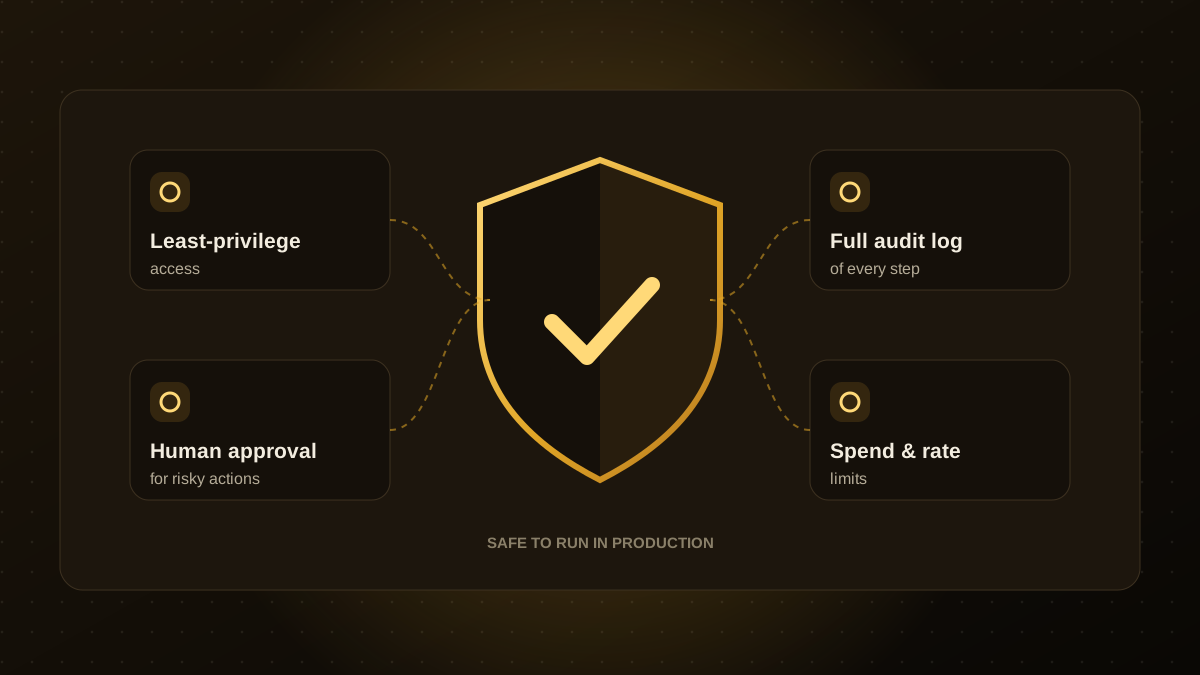
- Use dedicated accounts with the minimum permissions, never a shared admin login or an employee's personal browser session.
- Isolate the environment. Run the agent in a separate browser profile or virtual machine so it cannot reach unrelated data.
- Require approval before irreversible steps such as submitting payments, deleting records or sending messages.
- Treat screen content as untrusted. A web page can contain text that tries to give the agent new instructions. See our AI agent guardrails.
- Log everything, including screenshots of key steps, so you can review what the agent did.
- Set limits on steps, time and spend.
Choosing the right tool
| Approach | Best for | Trade-off |
|---|---|---|
| Direct API integration | Systems with a good API | Most reliable and cheapest, needs API access |
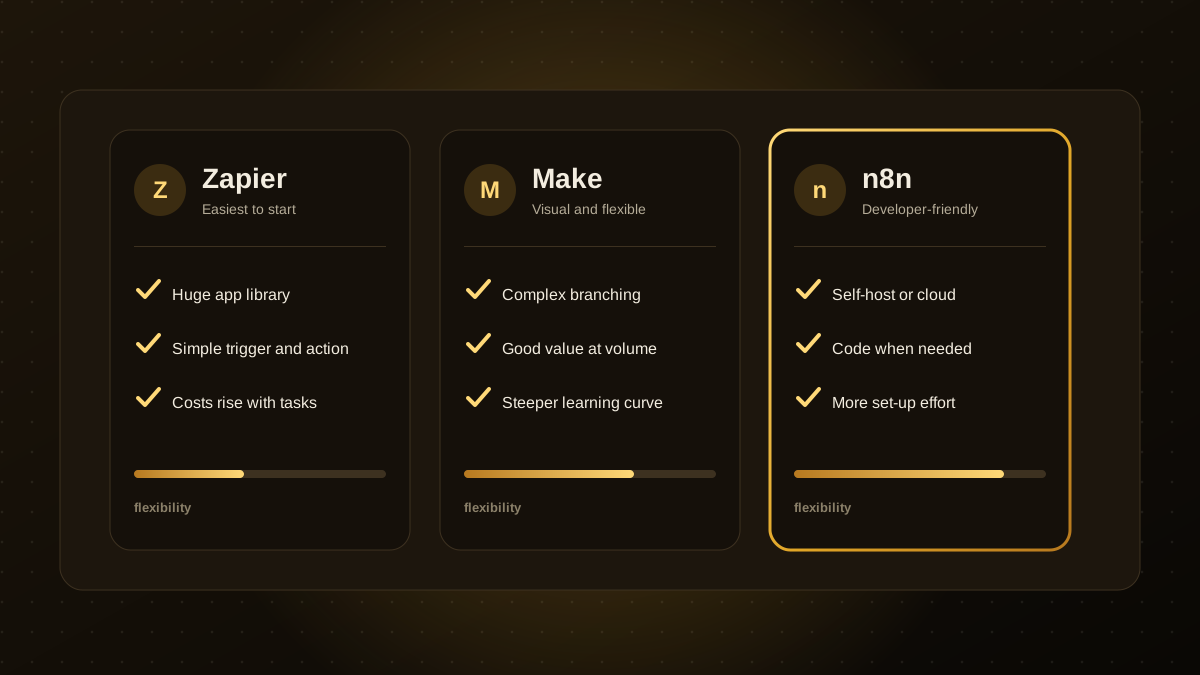
| Workflow platform | Connecting common apps, see Zapier vs. Make vs. n8n | Limited to supported connectors |
| Traditional screen automation (RPA) | Fixed, rule-based screens | Breaks when the interface changes |
| Computer-use agent | Variable screens and judgement calls | Slower, costlier, needs oversight |
A sensible pilot
Pick one repetitive, low-risk task, run the agent in suggest mode where a person confirms each result, and track success rate, time per task and cost per task. Compare the numbers with the manual process using the model in our guide to automation ROI. If the numbers work, widen gradually. If you want help scoping a pilot, our AI agent development team can build and test one with you.

Qodexify is a remote-first team of senior engineers building web apps, AI agents, workflow automation and websites. Learn more about our AI agent development service or talk to an engineer.